What's Really Running on Your PC Right Now — And What You Should Shut Down Immediately
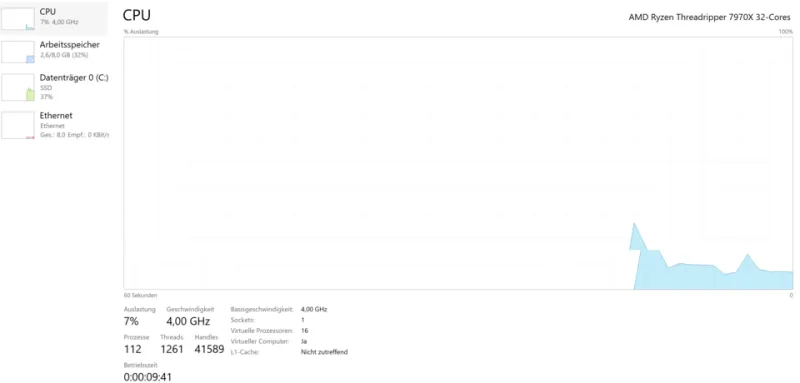
Photo: OS: Microsoft Corporation Screenshot: PantheraLeo1359531 😺 (talk), Public domain, via Wikimedia Commons
Open Task Manager on any Windows PC that hasn't been recently maintained, and you'll likely encounter a sobering sight: forty, sixty, sometimes over a hundred active processes competing for your system's attention. Most users dismiss this view as too technical to navigate. That instinct is understandable — but costly. Understanding what lives in the background of your machine is one of the most impactful steps you can take toward a faster, more stable system.
This guide is designed to cut through the noise. Whether you're running Windows 10 or Windows 11, the principles here apply directly to your machine — and the payoff in performance can be immediate.
Opening the Right View in Task Manager
Press Ctrl + Shift + Esc to launch Task Manager directly. If you see only a simplified list of open apps, click "More details" at the bottom to reveal the full interface. From there, navigate to the Processes tab, which displays everything currently running — including applications, background processes, and Windows system services.
Click the CPU or Memory column headers to sort processes by their resource consumption. This immediately surfaces the worst offenders and gives you a working priority list.
The Usual Suspects: Common Resource Drains You Can Safely Disable
Not every process running on your computer earned its place there. Many are remnants of software installations, manufacturer bloatware, or programs that have quietly enabled themselves at startup without your knowledge.
Manufacturer Bloatware Services If you purchased a pre-built PC or laptop from brands like HP, Dell, or Lenovo, it almost certainly came loaded with proprietary software — diagnostic suites, promotional apps, and update managers that run perpetually in the background. Programs like "HP Support Assistant," "Dell SupportAssist," or various Lenovo utilities consume measurable CPU cycles even when you're not actively using them. Unless you rely on their specific functions, these are generally safe to disable.
Third-Party Updater Processes Applications like Adobe, Spotify, and various gaming clients often install standalone update services that run independently of the main application. Adobe's "AdobeUpdateService" and similar background agents check for updates constantly, even when the associated program is closed. You can manage updates manually on demand rather than letting these services idle indefinitely.
Cloud Sync Clients Running Unnecessarily Dropbox, OneDrive, Google Drive, and iCloud desktop clients are valuable tools — but they don't need to run constantly if you're not actively syncing files. If you notice these processes consuming significant memory during sessions when you're not working with cloud files, consider configuring them to launch only when needed.
Browser Background Processes Chrome, Edge, and Firefox are all known to leave background processes running even after the browser window is closed. Chrome, in particular, maintains a "Background Apps" feature that keeps extensions and web apps alive. Navigate to Chrome's settings and disable this feature if you don't actively rely on it.
Managing Startup Programs: The First Line of Defense
Task Manager's Startup tab is where long-term performance is often won or lost. This panel lists every program configured to launch automatically when Windows boots. The "Startup impact" column provides a rough measure of how significantly each entry slows your boot sequence.
Right-click any entry and select Disable to prevent it from loading at startup. This does not uninstall the program — it simply removes it from the automatic launch sequence. You can still open the application manually whenever you need it.
Common startup entries that are safe to disable for most users include:
- Spotify
- Discord
- Slack (unless you use it for work immediately at boot)
- Steam
- iTunes / Apple Music
- Third-party antivirus companion apps (separate from the core antivirus service)
What You Should Never Disable
This is where caution becomes essential. Certain processes in Task Manager are foundational to Windows operation, and terminating or disabling them can cause system instability, crashes, or loss of functionality.
Do not end or disable the following:
- System and System Idle Process — Core kernel operations.
- Windows Security Health Service — Manages Windows Defender and security monitoring.
- lsass.exe (Local Security Authority Subsystem Service) — Handles authentication and login security.
- svchost.exe — A host process for multiple essential Windows services. Multiple instances are normal and expected.
- csrss.exe (Client Server Runtime Process) — Critical for the Windows subsystem.
- winlogon.exe — Manages the secure attention sequence and user login.
If you're ever uncertain about a process, right-click it in Task Manager and select Search online. This will open a browser search with the process name, allowing you to verify its purpose before taking any action.
Using the Services Tab for Deeper Control
For advanced users, the Services tab in Task Manager — or the dedicated Services panel accessed via services.msc — offers granular control over Windows background services. Services like "Fax," "Print Spooler" (if you don't own a printer), "Windows Search" (if you use an alternative search tool), and "Bluetooth Support Service" (on desktop systems without Bluetooth hardware) can often be set to Manual or Disabled without consequence.
Proceed carefully here. Setting a critical service to Disabled rather than Manual can prevent Windows from starting it when genuinely needed.
A Sustainable Maintenance Routine
Disabling unnecessary background processes is not a one-time task. New software installations routinely re-enable startup entries or introduce new background services. Building a habit of reviewing Task Manager and the Startup tab every few months — especially after installing new software — will keep your system running at its best.
A lean, well-maintained background process list is one of the most reliable performance investments you can make. Your CPU and RAM are finite resources. Every cycle and megabyte reclaimed from an unnecessary process is one returned to the work you're actually trying to accomplish.