Before You Buy a Mesh System, Move Your Router: The Free Audit That Doubled My Throughput
The instinct, whenever home Wi-Fi disappoints, is to spend. A mesh system, a Wi-Fi 7 extender, a new gateway from your ISP — the market is happy to sell you a solution before anyone has diagnosed the problem. But in a surprising number of American homes, the real issue is not inadequate hardware. It is inadequate placement, and it costs nothing to correct.
Before you add a single device to your network, take an hour and audit what you already have. In many cases, the results are measurable on the first try.
The Invisible Obstacles Inside Your Walls
Wi-Fi signals are radio waves in the 2.4GHz and 5GHz bands, and they behave like any other radio wave: they reflect, absorb, and scatter when they meet physical materials. Some household objects are far worse offenders than others.
Mirrors and large glass surfaces. The metallic backing on a mirror acts as a reflector, bouncing signal energy back toward the router and creating a shadow zone behind it. A router sitting on a dresser facing a mirrored closet door is fighting itself.
Aquariums. Water absorbs 2.4GHz energy remarkably efficiently — the same physics that makes microwave ovens work. A 55-gallon tank between your router and your living room can degrade a signal as thoroughly as a wall.
Microwave ovens. An operating microwave radiates in the 2.4GHz band itself. If your video calls stutter every evening around dinner prep, this is not a coincidence.
Metal furniture, appliances, and ductwork. Refrigerators, filing cabinets, and HVAC returns all attenuate signal. A router hidden inside a media console with a metal frame may as well be in a Faraday cage.
Decorative lighting. It sounds absurd, but strings of holiday lights — particularly older incandescent sets — generate low-level electromagnetic interference, and dense copper wiring in walls adds its own noise floor. Individual contributors are small; in aggregate, they matter.
Mapping Your Dead Zones for Free
You do not need professional surveying equipment. You need a phone and twenty minutes.
- Establish a baseline. Run a speed test (Ookla's Speedtest or similar) standing next to the router. Write the number down. This is your reference point.
- Walk the house. Carry your phone to every room you actually use — home office, primary bedroom, the garage workbench, the basement where the kids game. Run a test in each spot and note the result. Do this at least once during a quiet hour and once during peak evening use.
- Watch the signal, not just the speed. Apps like Wi-Fi Analyzer (Android) or the built-in diagnostics on macOS (hold Option while clicking the Wi-Fi icon) show received signal strength in dBm. Anything worse than -70 dBm will feel sluggish regardless of your ISP plan.
- Identify the pattern. Dead zones directly behind large reflective or absorptive objects point to placement problems. Dead zones everywhere beyond a certain distance point to a router that is simply underpowered or badly located.
Repositioning: The Room-by-Room Walkthrough
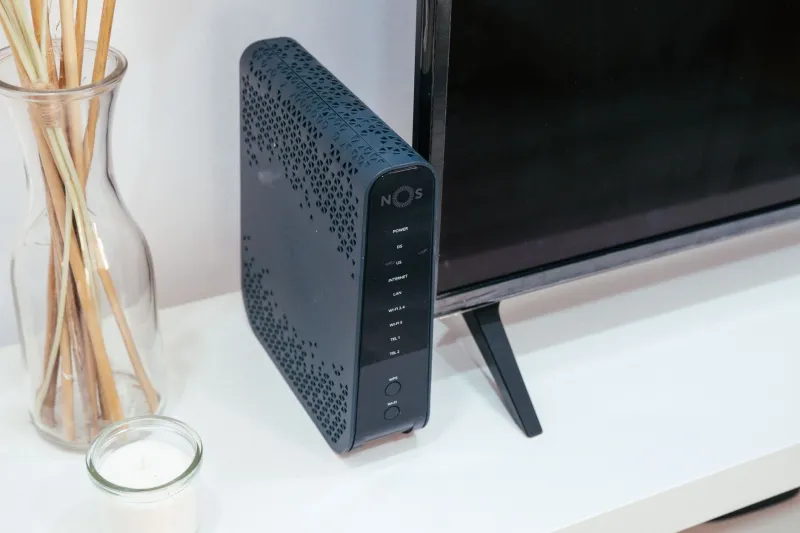
The single most common mistake in American homes is placing the router on the floor, in a corner, or inside furniture — usually wherever the ISP technician happened to stop. Optimal placement follows a few principles:
- Central and elevated. Radio waves radiate outward and slightly downward from most consumer antennas. A central hallway shelf at chest height or higher outperforms a corner floor outlet in nearly every floor plan.
- Line of sight where possible. Every wall, appliance, or tank between router and device costs you signal. Count what stands in the path to your most-used rooms.
- Away from interference sources. Keep at least three to four feet from microwaves, cordless phone bases, baby monitors, and Bluetooth hubs.
- Antenna orientation. If your router has adjustable antennas, position them perpendicular to one another — one vertical, one horizontal. Devices with horizontal antennas (many laptops) connect better to a horizontal signal.
For a typical two-story home, the ideal location is on the main floor, roughly centered, high on a shelf — not in the basement ceiling next to the furnace.
Choosing Between 2.4GHz and 5GHz
Once placement is fixed, band selection is the next free win:
- 2.4GHz travels farther and penetrates walls better, but it is congested — shared with microwaves, Bluetooth, and every neighbor's network — and tops out at lower real-world speeds.
- 5GHz delivers significantly higher throughput at shorter range with less interference, but struggles through multiple walls.
The practical rule: devices in the same room or one wall away should use 5GHz; distant or obstructed devices, plus smart home gadgets, belong on 2.4GHz. If your router broadcasts a single merged network name, check its admin panel — most allow you to split the bands manually so you can pin devices where they perform best.
Measure Twice, Spend Never
Re-run your speed tests in the same locations as your baseline. Homeowners who move a router from a basement corner to a central shelf commonly report 30 to 100 percent throughput improvements in the rooms that mattered most.
If, after a proper placement audit and band optimization, your farthest rooms still underperform — then, and only then, is it time to price out a mesh system or wired access point. You will buy better hardware, and possibly less of it, because you will know exactly where the gap is.
Diagnose first. Purchase second. That order is the whole trick.