Dead Hardware Is Often Just Dried Paste and a Bad Capacitor: What Repair Shops Won't Tell You
The diagnosis arrives with confidence: the machine is finished. The repair counter quotes $200 for a replacement board, or worse, suggests it's time for a whole new computer. Before accepting that verdict, it's worth understanding a pattern that plays out in shops across the country every week — a surprising share of "dead" hardware is actually a handful of consumable components that cost less than a pizza to replace.
Dried thermal paste, swollen capacitors, worn fan bearings, and cracked solder joints account for a remarkable number of premature retirements. None of these require engineering expertise to fix. All of them require patience, a few tools, and the willingness to open the case.
The Four Failures That Get Machines Written Off
Dried thermal paste. Paste is the interface between a processor and its heatsink, and it degrades. After three to five years, it crusts, cracks, and stops transferring heat. The result is thermal throttling, random shutdowns under load, and fans that scream at full speed. Shops sometimes read these symptoms as a failing CPU — a far more expensive conclusion.
Swollen or leaking capacitors. Electrolytic capacitors on motherboards and power supplies bulge at the top or weep brown residue when they fail. A machine that won't power on, or that reboots randomly, may have two or three bad caps among dozens of healthy ones. On many desktop boards, they can be replaced for a few dollars in parts.
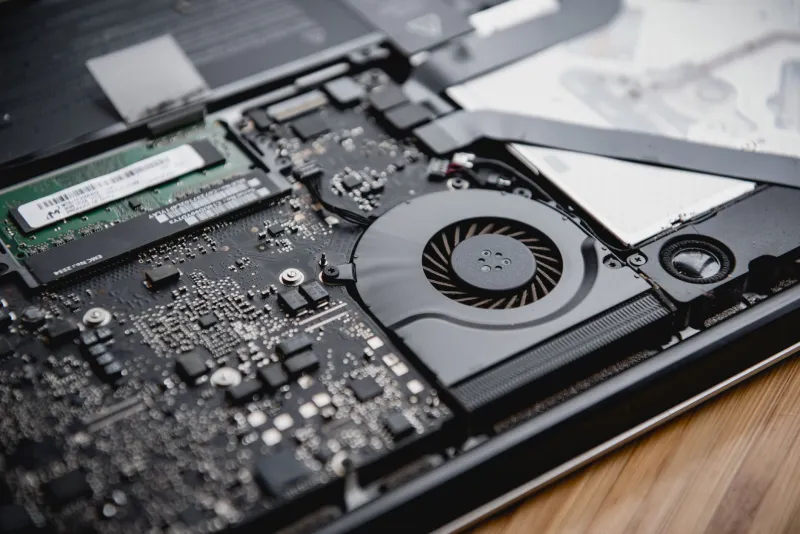
Worn fan bearings. A grinding or rattling fan is often dismissed as cosmetic noise. Left alone, a seized fan causes exactly the overheating problems described above. A replacement fan for a common laptop or case typically runs $8 to $20.
Cracked solder joints. Repeated thermal cycling flexes solder connections, especially on ports, power jacks, and larger chips. A laptop that only charges when the cable is held at one angle almost certainly has a cracked DC jack joint, not a dead charging circuit.
The Toolkit: Small, Cheap, and Nearly Universal
Everything on this list fits in a drawer and totals well under $75:
- A precision screwdriver set with Phillips #0 and #00, Torx T5/T6, and a spudger or plastic pry tool
- A tube of quality thermal paste — Arctic MX-6 or Noctua NT-H2, around $8
- Isopropyl alcohol (91% or higher) and lint-free wipes for cleaning old paste
- A soldering iron with a fine tip (only if attempting capacitor or jack work), plus flux and desoldering wick
- An anti-static wrist strap, or at minimum the habit of touching bare metal before handling components
- A magnetic parts mat or a strip of tape to keep screws organized by location
Repasting a Laptop: The Highest-Value Repair in Computing
No single maintenance task delivers a better return. A repaste takes 45 minutes and routinely drops CPU temperatures 10 to 20 degrees Celsius.
- Shut down, unplug, and remove the battery if removable. Ground yourself.
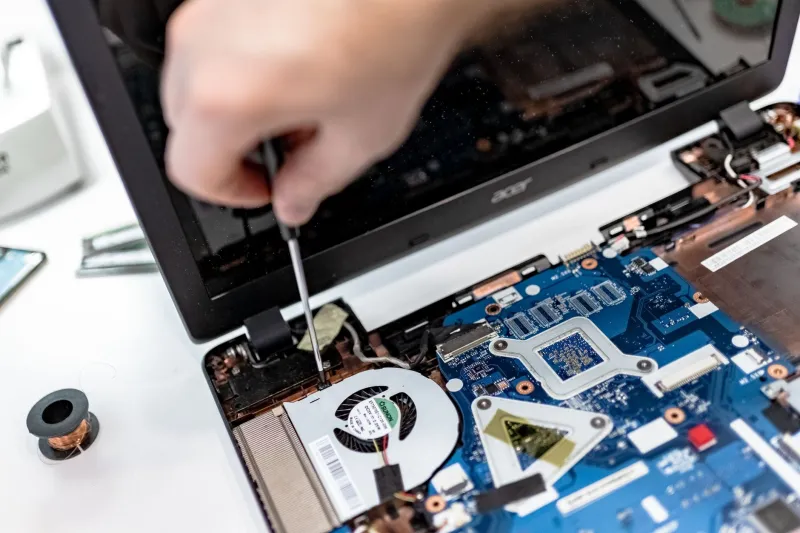
- Remove the bottom panel. Most modern laptops use Phillips or Torx screws, some hidden under rubber feet or stickers.
- Locate the heatsink assembly — the metal shroud over the CPU (and often the GPU). Remove its screws in the order stamped on the metal, usually numbered, loosening each a half turn at a time before full removal.
- Lift the heatsink gently. If it resists, twist carefully rather than prying. The old paste will look dry, chalky, or flaky — confirmation of the diagnosis.
- Clean both surfaces with isopropyl alcohol and a lint-free wipe until they shine.
- Apply new paste — a small pea-sized dot at the center of the die. Mounting pressure spreads it evenly. Avoid the toothpaste-across-the-chip approach; excess paste serves no purpose.
- Reassemble in reverse order, tightening heatsink screws in the numbered sequence, two turns at a time, to ensure even pressure.
Boot the machine and monitor temperatures with a free utility like HWiNFO. If idle temps dropped and load spikes no longer trigger shutdowns, the "$200 replacement" just became a $12 afternoon.
Replacing a Fan: Easier Than It Sounds
Laptop fans are usually held by three or four screws and connected by a small ribbon or pin connector. Note the part number printed on the fan housing, order the exact match (Newegg, Amazon, or the manufacturer's parts store), disconnect the old fan's cable by pulling the plug — never the wires — and reverse the process. A desktop case fan is even simpler: one connector and four screws.
Capacitors and Solder Work: Know Your Limits
Capacitor replacement is genuinely doable for someone comfortable with a soldering iron. The procedure is straightforward: identify the failed cap (match capacitance in microfarads, voltage rating equal or higher, and low ESR for motherboard use), desolder the old part, clean the holes, and solder in the replacement with correct polarity — the stripe marks the negative side.
But this is also where honest self-assessment matters. A cracked DC jack on a modern laptop often requires desoldering six or more pins through tiny holes, sometimes with board removal and microsoldering skills. A botched job can turn a $150 repair into a genuinely dead board.
When Repair Stops Being Worth It
A practical framework for the walk-away decision:
- The repair exceeds half the machine's resale value — a $400 microsoldering job on a $600 laptop fails this test.
- The failure is on a multi-layer board with buried traces — rework risk climbs steeply.
- Parts are proprietary or unavailable — some ultrabooks solder storage and RAM to the board, eliminating the cheap-fix path entirely.
- The machine has other aging limits — if the battery, hinge, and paste all need attention on a seven-year-old machine, the math shifts toward replacement.
The Bigger Point
The consumer electronics industry has an interest in replacement, not repair. But the four failures above are mechanical wear items, no different from brake pads or furnace filters. A $12 tube of paste and an hour of work have kept countless machines running years past their predicted deaths. Before paying for a replacement verdict, open the case and look — the fix is often smaller, cheaper, and easier than anyone at the counter will admit.