The $400 Quote That Started With a Thermometer: Auditing Your Laptop's Cooling Before You Pay for a 'Repair'
The service counter verdict came fast: the machine was five years old, the motherboard was 'tired,' and a replacement was the sensible option. Four hundred dollars, please. What the technician never mentioned — and what most quick-turnaround diagnostics never check — is that the laptop's actual problem may have been measurable with a free download and ten minutes of patience.
Heat is the quiet saboteur of laptop performance. Before a component ever fails outright, it slows itself down on purpose. Understanding that behavior is the difference between a repair bill and a weekend project.
Why Hot Laptops Get Slow Before They Get Broken
Modern processors ship with a self-preservation contract built in. When silicon temperature crosses a threshold — typically somewhere between 95°C and 100°C on many Intel and AMD mobile chips — the processor sheds clock speed to protect itself. This is thermal throttling, and it is working exactly as designed.
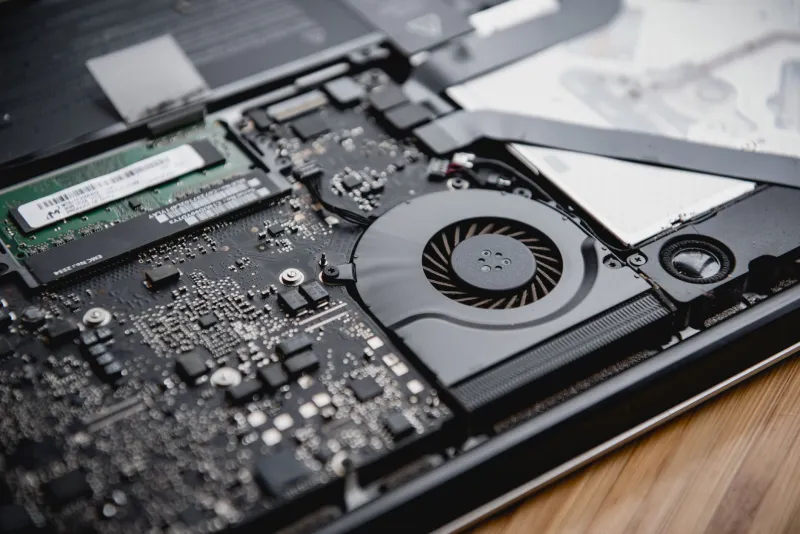
The design assumption, however, is that the cooling system is doing its job. In a laptop that has spent three years pulling desk lint through its intake vents, that assumption falls apart. Dust mats against the heatsink fins. The thermal paste between the die and the cooler — a material with a working lifespan of roughly three to five years — dries into something closer to a cracker than a conductor. The fan, meanwhile, is still running the conservative curve the manufacturer programmed at the factory, ramping late and gently because that curve was tuned for a quiet demo unit on a retail shelf, not a dust-choked machine in a warm apartment.
The result is a laptop that runs fine for the first two minutes of any task, then quietly gives up. Video exports that used to take eight minutes now take twenty. Games that held 60 FPS now stutter into the 30s. Nothing is broken. Everything is just hot.
The Teardown-Free Thermal Audit
You can confirm or rule out throttling without removing a single screw. Here is the sequence:
Step 1: Establish a baseline. Download HWiNFO64 (free) and open its Sensors panel. Look for your CPU's current clock speed and package temperature. Leave it running.
Step 2: Apply a load. Run Cinebench R23, or simply start a long video export or a demanding game. Watch the sensors.
Step 3: Read the story. A healthy laptop holds its rated boost clocks for at least the first 30 seconds, then settles to a sustained speed with temperatures in the 80s to low 90s Celsius. A throttling laptop either never reaches its rated clocks at all, or touches them briefly and then slides downward as temperatures pin against the ceiling. If your CPU is sitting at 97°C while running 40% slower than its advertised speed, you have your diagnosis.
Step 4: Check the fan's behavior. While under load, listen. If the fans stay quiet or only whisper while temperatures climb past 90°C, your fan curve is part of the problem — a detail most diagnostics never investigate.
Step 5: Feel the exhaust. Put your hand near the vent. Strong, warm airflow with high temperatures suggests a paste or heatsink contact problem. Weak, barely-there airflow points to dust blockage — the cheapest problem to fix.
The $10 Question: Is Repasting Worth It?
If your audit points to thermals, you have three escalating options.
Compressed air first. A can of dust-off through the intake vents — with short bursts and the laptop powered off — clears a surprising amount of debris. It will not fix dried paste, but it costs four dollars and takes two minutes. Always retest after.
Fan control second. This is the step most people skip, and it is often the highest-value fix of all. Tools like FanControl (free, open source) let you override the factory curve on many laptop models, spinning fans up earlier and harder than the manufacturer intended. Yes, the machine gets louder. It also stays fast. A laptop that throttles at 97°C but holds its clocks at 85°C is, functionally, a different computer. Check your model's compatibility on the FanControl GitHub page before assuming it will work — some laptops lock fan control in firmware.
Repasting last — and only sometimes. Opening a modern laptop means dealing with plastic clips, ribbon cables, and occasionally warranty-voiding stickers. If your machine is out of warranty, the paste is more than four years old, and your audit showed temperatures spiking instantly under light load, repasting with a quality compound (Noctua NT-H1 or Arctic MX-6, both under $10) is a legitimate fix. Expect a 5–15°C improvement on a genuinely degraded application. If your temperatures are merely warm but your clocks are holding, skip it. Repasting a healthy machine is effort with almost no payoff.
What This Doesn't Fix
Honesty matters here: thermals are not the answer to every slow laptop. If your machine has a spinning hard drive, no amount of cooling will make it feel modern — a $30 SATA SSD swap will do more than any heatsink. If your RAM is maxed out with browser tabs, your problem is memory, not temperature. The thermal audit is one diagnostic among several, and it should be run alongside a look at your startup programs and storage health (CrystalDiskInfo, also free).
The Bottom Line
The $400 quote for that laptop was not fraudulent — the technician probably believed the machine was worn out. But 'worn out' and 'running hot for years' present identically to someone who never checks a temperature sensor. Before you accept a replacement verdict on any laptop, spend an evening with HWiNFO, a can of compressed air, and a fan curve editor. The machine the shop wanted four hundred dollars to replace may just need ten dollars and an afternoon — and you will know exactly why it got slow in the first place.