Why Your Graphics Performance Gets Worse the Longer You Play — And What to Do About It
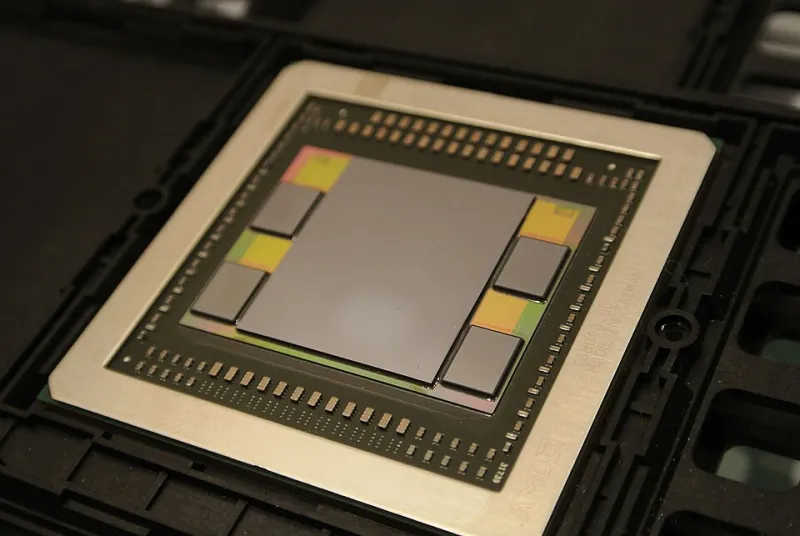
Photo: C. Spille/pcgameshardware.de, CC BY-SA 4.0, via Wikimedia Commons
You launch your game, and the first thirty minutes are flawless. Frame rates are smooth, textures are crisp, and everything behaves exactly as expected. Then, gradually, something shifts. Stuttering appears. Frame times become inconsistent. By the two-hour mark, what was once a fluid experience has become frustratingly choppy — and a full system restart is the only reliable remedy.
This pattern is one of the more confusing performance problems a PC user can encounter because the hardware itself is not failing. The GPU is fully functional. The drivers are installed. The game is patched. Yet performance erodes in a way that is entirely reproducible and deeply disruptive. The underlying cause, in many of these cases, is a GPU memory leak.
What a GPU Memory Leak Actually Is
Graphics processing units have their own dedicated memory — commonly referred to as VRAM — which stores textures, shaders, frame buffers, and other rendering data. Under normal operating conditions, this memory is allocated when assets are needed and released when they are no longer in use. A memory leak occurs when the release step fails: memory is allocated, used, and then not returned to the available pool.
Over time, this unclaimed memory accumulates. The GPU begins running out of addressable VRAM, forcing it to either compress assets, drop detail levels, or begin writing overflow data to system RAM — a process that is dramatically slower and introduces the stuttering and frame time spikes that users experience as degraded performance.
Critically, the leak itself is rarely the fault of the GPU hardware. It is almost always a software problem — a flaw in the graphics driver, a bug in the game or application, or a conflict between multiple programs competing for GPU resources simultaneously.
Recognizing the Symptoms
Because GPU memory leaks develop gradually, they are easy to misattribute to other causes. The following symptom pattern is a strong indicator that VRAM management is the underlying issue:
- Performance is normal immediately after a restart but degrades over a session lasting one to three hours
- Frame rate drops are not correlated with particularly demanding scenes — they occur even in areas that previously ran smoothly
- Closing and reopening the game without a full system restart does not resolve the problem
- The issue is consistent across multiple sessions and worsens over time within a single session
- Other GPU-intensive applications, such as video editing software or streaming tools, exhibit similar degradation when run concurrently
If your performance problems appear immediately and do not worsen over time, the cause is more likely thermal throttling, an underpowered system, or a game-specific optimization issue — not a memory leak.
Diagnostic Tools for Measuring VRAM Utilization
Confirming a GPU memory leak requires monitoring VRAM usage over the course of a session. Several reliable tools are available for this purpose.
GPU-Z, developed by TechPowerUp, provides real-time monitoring of VRAM usage and includes a logging feature that records values over time. Running GPU-Z in the background during a gaming session and reviewing the log afterward can reveal whether VRAM utilization climbs steadily without returning to baseline.
MSI Afterburner, widely used in the US gaming community, offers an on-screen display overlay that shows VRAM usage alongside frame rate, GPU temperature, and other metrics in real time. This allows you to observe the correlation between rising VRAM consumption and falling frame rates as it happens.
Windows Task Manager (Performance tab > GPU section) provides a basic view of dedicated GPU memory usage and is sufficient for a preliminary check, though it lacks the granularity of dedicated monitoring tools.
If VRAM usage climbs to near-capacity and does not decrease even when GPU load drops — such as when you pause the game or navigate a menu — a memory leak is a reasonable diagnosis.
Driver Updates: The First and Most Important Fix
The majority of GPU memory leaks that affect consumer hardware are caused by driver-level bugs, and the most direct remedy is ensuring your graphics driver is current.
For NVIDIA users, the GeForce Experience application manages driver updates, or drivers can be downloaded directly from NVIDIA's website by specifying your GPU model and operating system. For AMD users, the Radeon Software suite handles updates similarly, with manual downloads available through AMD's support portal. Intel Arc GPU users should consult the Intel Driver and Support Assistant.
It is worth noting that the newest driver is not always the most stable. If you updated your driver recently and the memory leak appeared shortly afterward, rolling back to the previous version is a legitimate troubleshooting step. Both NVIDIA and AMD maintain driver archives that allow installation of prior versions.
When installing a new driver, performing a clean installation — which removes all existing driver files before installing the new version — is preferable to an upgrade installation. The NVIDIA installer includes a clean install checkbox during setup. AMD users can use the Display Driver Uninstaller (DDU) utility in safe mode for a more thorough removal before installing a fresh driver package.
Application-Level and System-Level Adjustments
When a driver update does not fully resolve the issue, the leak may originate at the application level — particularly if the problem is isolated to one specific game or program.
Check for game patches and updates. Memory management bugs are frequently reported by players and addressed in subsequent patches. Reviewing the game's patch notes or community forums can confirm whether a known memory leak fix has been issued.
Reduce in-game VRAM-intensive settings. Texture quality is the single largest consumer of VRAM. Reducing texture resolution by one tier can meaningfully extend the duration before VRAM saturation occurs, providing a practical workaround while a permanent fix is pending.
Disable hardware-accelerated GPU scheduling (HAGS). This Windows feature, available on compatible systems running Windows 10 version 2004 or later, can interact poorly with certain driver versions and contribute to memory management irregularities. It can be toggled off through Settings > System > Display > Graphics settings > Change default graphics settings.
Limit background GPU usage. Applications running in the background — browser windows with hardware acceleration enabled, video players, and streaming software — consume VRAM alongside your primary application. Closing unnecessary programs before a gaming session reduces the total demand on GPU memory and can delay or prevent saturation.
When the Problem Persists
If a memory leak continues despite driver updates, application patches, and system-level adjustments, the issue may be specific to the combination of your GPU model, driver version, and the application in question. In these cases, monitoring community forums for your GPU model — particularly the NVIDIA, AMD, and game-specific subreddits and support boards — often surfaces workarounds that other users have identified.
In rare instances, a persistent and hardware-isolated memory issue may indicate a defect in the GPU itself. Running a stress test with a tool such as FurMark while monitoring VRAM usage can help determine whether the problem is reproducible under controlled conditions, providing useful information if a warranty claim becomes necessary.
Performance Should Not Decay During a Session
A well-configured system maintains consistent performance from the first minute of use to the last. When that consistency breaks down, it is a signal that something in the software stack is not functioning as designed — and that signal is worth investigating rather than accepting.
GPU memory leaks are solvable problems. They require methodical diagnosis, the right tools, and a willingness to work through the driver and application layers systematically. The hardware in your machine is almost certainly not the limiting factor. At RooterX2, our position is clear: a restart should be a choice, not a requirement.