Your CPU Is Holding Back on Purpose — How to Detect and Override Processor Throttling
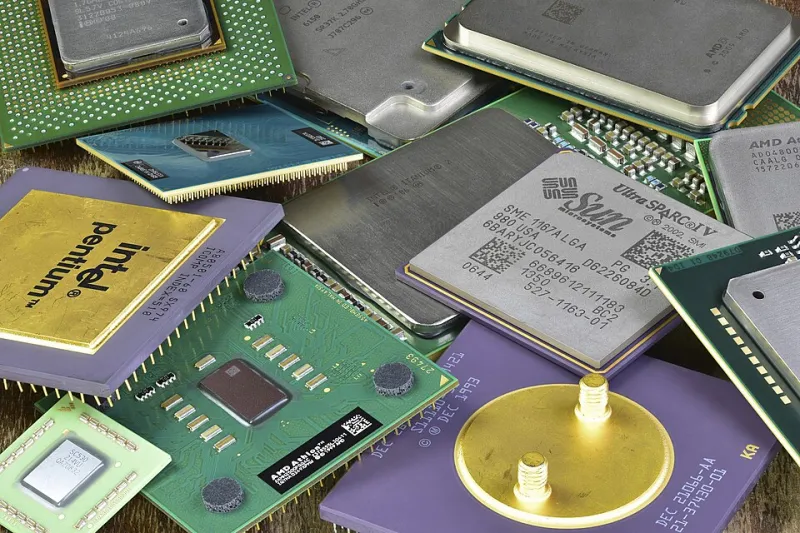
Photo: Martijn Boer, Public domain, via Wikimedia Commons
If your computer feels sluggish during tasks that should be well within its capabilities, and a quick glance at your temperature readings shows nothing alarming, you may be dealing with a problem that most users never think to investigate: intentional CPU throttling. Modern processors are not simply running at full speed whenever the workload demands it. They are governed by a complex set of rules that deliberately limit performance under a wide range of conditions — and many of those conditions have nothing to do with heat.
Understanding this behavior is not just a matter of curiosity. For professionals running video rendering pipelines, developers compiling large codebases, or gamers trying to maintain consistent frame rates, processor throttling can be the invisible bottleneck that no amount of RAM or storage upgrades will resolve.
What CPU Throttling Actually Means
Throttling, in technical terms, refers to any mechanism that reduces a processor's operating frequency or voltage below its rated capacity. The most widely known form is thermal throttling, which kicks in when the chip approaches its maximum safe temperature. But thermal protection is only one piece of a much larger picture.
Modern Intel and AMD processors implement what is broadly referred to as power management, a collection of features designed to balance performance against energy consumption. On laptops and ultrabooks especially, this behavior is aggressive. A processor may run at full boost speed for only a few seconds before the system's power delivery limits force it to step down — even when temperatures are perfectly acceptable. This phenomenon, sometimes called power limit throttling or PL1/PL2 throttling on Intel platforms, is one of the most common causes of sustained performance degradation that users attribute to other causes.
There is also a behavior known as thermal velocity boost on some Intel chips, where ambient temperature inside the chassis — not just the die temperature — influences how aggressively the processor boosts. A warm room combined with a warm system can reduce headroom even before any meaningful load is applied.
Detecting Throttling in Real Time
The first step toward addressing the problem is confirming it exists. Several tools provide the visibility needed to observe throttling as it happens.
HWiNFO64 is one of the most comprehensive free utilities available for Windows users. Under the CPU section of its sensor readout, you will find fields that explicitly indicate throttling status. Look for entries labeled "Thermal Throttling," "Power Limit Throttling," or "VR Throttling." Any of these registering as "Yes" during a demanding task is a clear diagnostic signal.
Intel's XTU (Extreme Tuning Utility) provides a dedicated throttling log for Intel-based systems, breaking down exactly which power or thermal limit triggered the reduction. For AMD systems, Ryzen Master offers similar visibility into current clock states and power consumption.
For a lightweight, always-visible option, MSI Afterburner combined with its RivaTuner Statistics Server overlay allows you to monitor CPU frequency in real time while running applications. A processor that consistently fails to reach its advertised boost clock under sustained load is almost certainly being constrained by one of these mechanisms.
Intentional vs. Problematic Throttling
Not all throttling warrants intervention. When a processor steps down its frequency to protect itself from genuine thermal damage, that behavior is both intentional and appropriate. Attempting to override thermal protections without addressing the underlying cooling problem is a path toward hardware failure, not performance improvement.
The cases worth investigating are those where throttling occurs despite acceptable temperatures. If your CPU is running at 75°C or below and still failing to hold its rated boost frequency during sustained tasks, the throttle is being triggered by power limits rather than heat. This is particularly common on thin laptops where manufacturers configure conservative power envelopes to preserve battery life and chassis temperatures — choices that make sense for portability but impose real costs on performance.
Desktop systems are generally less susceptible to this pattern, though they are not immune. Power delivery limitations, aggressive Windows power plans, and BIOS settings that prioritize energy efficiency over throughput can all contribute to throttling on desktop platforms as well.
Practical Methods for Reclaiming Performance
Adjust Your Windows Power Plan
This is the first and simplest intervention. Navigate to Control Panel, then Power Options, and ensure that your active plan is set to High Performance or, on systems that support it, Ultimate Performance. The Balanced plan, which is the Windows default, actively reduces processor frequency during periods of lower demand and can be slow to ramp back up when workloads spike. For desktop systems where power consumption is less of a concern, switching away from Balanced is a no-cost performance improvement.
Modify Power Limit Settings via BIOS
For users comfortable working in their system's BIOS or UEFI firmware, adjusting power limit settings can unlock sustained performance that Windows-level changes cannot provide. On Intel platforms, the relevant values are PL1 (the sustained power limit) and PL2 (the short-duration boost limit). Increasing PL1 allows the processor to maintain higher frequencies for longer periods. This option is more accessible on desktop motherboards from manufacturers like ASUS, MSI, and Gigabyte, where BIOS interfaces provide straightforward controls. Laptop users may find these settings locked by the manufacturer, though third-party firmware tools exist for some platforms.
Improve Thermal Management First
Even when throttling is power-related rather than thermal, reducing operating temperatures gives the processor more headroom to work with. Cleaning dust from heatsinks and fans, replacing degraded thermal paste on older systems, and ensuring adequate airflow within the chassis are all steps that can meaningfully reduce the frequency at which any throttling mechanism engages. On laptops, using the device on a hard, flat surface rather than soft materials that block ventilation vents is a simple but genuinely effective practice.
Disable Efficiency Cores for Specific Workloads (Intel 12th Gen and Later)
On Intel's hybrid architecture processors, the scheduler occasionally assigns demanding tasks to efficiency cores rather than performance cores, which can create the appearance of throttling in certain applications. For single-threaded workloads that are sensitive to frequency, using Windows 11's Thread Director settings or third-party process affinity tools to pin tasks to performance cores can yield noticeable improvements.
Knowing When to Leave It Alone
It is worth acknowledging that throttling exists for legitimate reasons. On a battery-powered laptop in a warm environment, a processor running at reduced speed is the system working as designed — protecting both the hardware and the user's battery investment. The goal is not to eliminate all power management but to ensure that the system's behavior aligns with the demands being placed on it.
When you are plugged in, running a sustained workload, and performance still falls short of what the hardware should deliver, that is the scenario where investigation and adjustment are warranted. The tools and methods described here provide a structured path to diagnosing the cause and applying the appropriate remedy.
Your processor is capable of more than it may currently be showing you. In many cases, the only thing standing between you and that performance is a set of settings that were configured for someone else's priorities — not yours.