Throwing Money at RAM Won't Fix Your PC — Here's What Actually Will
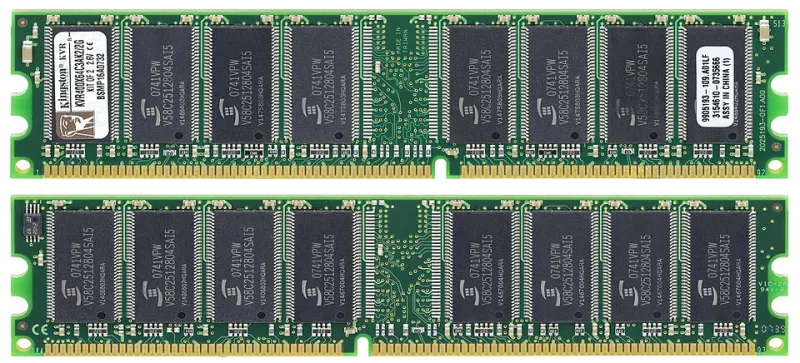
Photo: Mister rf, CC BY-SA 4.0, via Wikimedia Commons
Walk into any tech forum, Reddit thread, or big-box electronics store in the United States and ask why your computer is running slowly. Odds are, the first answer you will hear is: get more RAM. It is advice delivered with confidence, repeated constantly, and — in a surprising number of cases — completely wrong.
RAM upgrades do solve real problems. But they solve a specific kind of problem, and if your system is not actually suffering from memory pressure, adding more of it accomplishes almost nothing. Worse, it gives you a false sense of resolution while the genuine bottleneck continues to drag your machine down.
At RooterX2, we see this pattern regularly: a user installs 32GB of memory, reboots, and wonders why everything still feels sluggish. The answer is usually that RAM was never the issue to begin with.
Understanding What RAM Actually Does
Random access memory serves as your system's short-term workspace. When you open an application, your operating system loads its active data into RAM so the processor can access it quickly, rather than reading from a much slower storage drive every time. When RAM fills up, Windows begins using a portion of your storage drive as virtual memory — a process called paging — which is significantly slower and noticeably degrades system responsiveness.
The logic behind "more RAM equals faster PC" is technically sound in situations where paging is occurring. But if your system has sufficient memory for its workload, adding more does not speed up the applications already running. It simply leaves additional RAM sitting idle.
How to Tell Whether RAM Is Actually Your Bottleneck
Before purchasing anything, run a proper diagnostic. Windows includes built-in tools that reveal exactly how your memory is being used in real time.
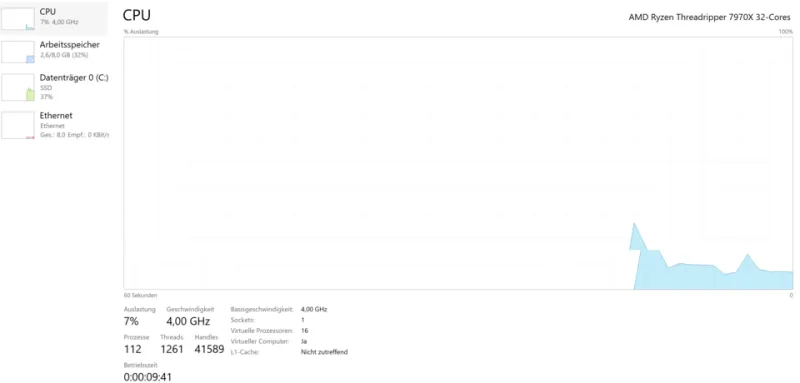
Open Task Manager (press Ctrl + Shift + Esc), navigate to the Performance tab, and select Memory. Pay attention to two figures: the amount of RAM in use and the number labeled In Use (Compressed). If your total usage consistently hovers above 85 to 90 percent during normal operation — not during a stress test, but while doing the tasks you do every day — then a RAM upgrade is a legitimate consideration.
Also examine the Committed value. This reflects how much virtual memory Windows has promised to running processes. A committed value that significantly exceeds your physical RAM indicates that your system is regularly reaching into page file territory, which will produce noticeable slowdowns.
If, however, your RAM usage sits at 55 or 60 percent during typical use, the problem is elsewhere.
The Configuration Problem Nobody Talks About
Here is something that surprises many users: a system with 16GB of RAM in a suboptimal configuration can perform worse than a system running 8GB properly configured. The reason is memory channel architecture.
Modern processors are designed to access RAM through dual channels simultaneously, effectively doubling the available memory bandwidth. This requires installing matched pairs of RAM sticks in the correct slots on your motherboard. A single 16GB stick installed alone runs in single-channel mode, cutting bandwidth in half compared to two 8GB sticks installed in the appropriate paired slots.
If you have already upgraded your RAM but are not seeing the expected improvement, open your motherboard's manual or check the manufacturer's website to confirm your sticks are seated in the correct slots. This single adjustment, which costs nothing, can produce a measurable performance improvement.
Additionally, verify that your RAM is running at its rated speed. Many systems default to a conservative base frequency unless XMP (Extreme Memory Profile) or EXPO is enabled in the BIOS. RAM marketed as DDR4-3200 may be running at DDR4-2133 until that profile is activated.
What Is Actually Wasting Your Memory
Even when RAM usage appears high, the culprit is frequently not a shortage of physical memory — it is software consuming memory it should not be consuming.
Several categories of programs are habitual memory offenders:
- Browser tabs and extensions: A modern Chromium-based browser with fifteen open tabs and a dozen extensions can consume 4GB or more on its own. Each extension runs as a background process with its own memory footprint.
- Startup programs: Applications that launch automatically at boot often remain in memory indefinitely, even if you never actively use them during a session.
- Background services: Software update managers, cloud sync clients, and companion apps for hardware peripherals frequently consume memory around the clock.
- Memory leaks: Some applications contain bugs that cause them to gradually consume more and more RAM over time without releasing it. If your system feels progressively slower the longer it runs without a restart, a memory leak is a strong candidate.
To address these issues, review your startup programs through Task Manager's Startup tab and disable anything nonessential. Use the Processes tab sorted by memory consumption to identify which applications are holding the most. For browser-related bloat, audit your installed extensions and close tabs you are not actively using.
When a RAM Upgrade Is Genuinely Justified
None of this is meant to suggest that RAM upgrades are never worthwhile. They absolutely are — under the right circumstances.
If you are running memory-intensive workloads such as video editing, 3D rendering, virtual machines, or large dataset analysis, 16GB may be a genuine constraint. Modern games are also increasingly memory-hungry, with several titles recommending 16GB as a baseline and performing better with more available.
If your diagnostic confirms consistent high utilization and your configuration is already optimized, upgrading is a sound investment. The point is simply to confirm the diagnosis before spending the money.
The Real Optimization Opportunity
In many cases, the most effective path to better performance is not purchasing new hardware — it is eliminating the waste embedded in your current configuration. Disabling unnecessary services, correcting memory channel installation, enabling XMP in the BIOS, and managing browser resource consumption can collectively produce improvements that a naive RAM upgrade would never deliver.
Fast, well-managed memory outperforms abundant, poorly configured memory every time. Diagnose first. Upgrade only when the data supports it. Your wallet and your system will both benefit from the discipline.