Why Your SSD Slows Down Over Time — And the Simple Fixes That Restore Full Speed
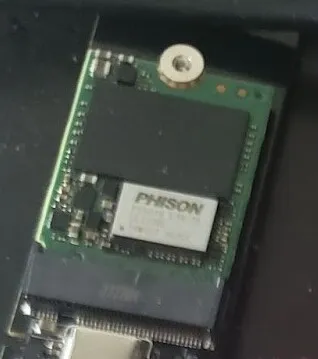
Photo: User5515, CC0, via Wikimedia Commons
You paid for speed. Whether it was a budget SATA drive or a high-end NVMe unit advertised at 7,000 MB/s sequential reads, the expectation was clear: faster storage, faster everything. So when file transfers start dragging, game load times creep back up, and Windows begins feeling sluggish again, the natural assumption is that something has gone wrong with the hardware.
In most cases, nothing has gone wrong — at least not in the way you might think. Your SSD is almost certainly still functional. What has changed is its willingness to operate at full capacity. That reluctance has a name: thermal throttling.
What Thermal Throttling Actually Means
Solid-state drives, particularly NVMe M.2 drives, generate meaningful heat during sustained read and write operations. The NAND flash memory chips and the drive controller responsible for managing data access both produce thermal output that accumulates quickly in compact form factors — especially in laptops and small-form-factor desktops where airflow is limited.
To prevent permanent damage from overheating, SSD manufacturers program their drives with thermal sensors and protective firmware logic. When internal temperatures exceed a defined threshold — typically somewhere between 158°F and 176°F (70°C and 80°C), depending on the manufacturer — the drive's controller automatically reduces its operating speed. This is throttling: a deliberate, self-imposed slowdown designed to shed heat before component damage occurs.
From the user's perspective, there is no warning. No notification appears in Windows. No error is logged in a visible location. The drive simply begins performing at a fraction of its rated speed, and the system feels inexplicably slower.
The Processes Most Likely to Trigger a Heat Spike
Not all workloads push an SSD to throttle. Light tasks — loading a web browser, opening a document — rarely generate enough sustained activity to raise drive temperatures significantly. The trouble typically starts with prolonged, high-throughput operations.
Several common background activities are frequent offenders:
- Windows Update downloads and installations. The process involves large sequential writes and frequent random access, often running silently while you are trying to use your computer for something else.
- Antivirus and security scans. A full-system scan reads through every file on the drive in rapid succession, generating sustained thermal output for extended periods.
- Cloud storage synchronization. Services like OneDrive, Dropbox, and Google Drive can initiate aggressive sync operations — particularly after a period of inactivity — causing spikes in write activity.
- System restore point creation. Windows often creates restore points during updates or application installs, writing large amounts of data in a short window.
- Game or application installations. Extracting and writing several gigabytes of data at once is one of the most thermally demanding operations a consumer SSD regularly encounters.
When multiple of these processes overlap — a scenario that is far more common than most users realize — the thermal load compounds quickly.
How to Monitor Your Drive Temperature Right Now
Before attempting any fixes, you need accurate temperature data. Windows 11 includes basic NVMe temperature monitoring natively: open Task Manager, navigate to the Performance tab, select your drive, and look for the temperature readout at the bottom of the panel. This is a reasonable starting point, though it only reflects a snapshot in time.
For more detailed monitoring, CrystalDiskInfo is a widely respected free utility that reads S.M.A.R.T. data from your drive and displays current temperature alongside health status indicators. HWiNFO64 provides even more granular real-time data and allows you to log temperatures over time, which is particularly useful for identifying which activities cause the most significant heat spikes on your specific system.
If your drive is consistently reading above 158°F (70°C) during moderate workloads, throttling is almost certainly affecting your performance.
Practical Steps to Reduce SSD Temperatures
Add or Upgrade a Heatsink
Many consumer motherboards include a passive aluminum heatsink designed to cover M.2 drives. If yours did not come with one, or if you removed it and never replaced it, that is the first place to start. Aftermarket M.2 heatsinks are widely available for under $15 and can reduce operating temperatures by 20°F to 30°F under load — often enough to eliminate throttling entirely.
For laptops, dedicated heatsinks are generally not an option, but repositioning the device to improve airflow (keeping vents unobstructed, using a laptop cooling pad) can produce meaningful improvements.
Improve Case Airflow
In desktop systems, the ambient temperature inside the case directly affects SSD performance. Ensuring that intake and exhaust fans are properly configured — cool air entering from the front and bottom, warm air exiting from the rear and top — reduces the thermal environment in which your drive operates. Dust-clogged fans and filters are a common and easily overlooked contributor to elevated internal temperatures.
Stagger Background Processes
Windows does not always coordinate background tasks intelligently. You can take manual control by scheduling intensive operations during off-hours. Configure Windows Update to run overnight. Set your antivirus to perform full scans during periods when the machine would otherwise be idle. Adjust cloud sync settings to operate on a schedule rather than continuously. Reducing the likelihood of multiple high-throughput processes running simultaneously significantly reduces peak thermal loads.
Update Your SSD Firmware
Drive manufacturers periodically release firmware updates that refine thermal management algorithms. In some cases, these updates raise throttling thresholds or improve the efficiency of the drive controller, reducing heat generation at equivalent workloads. Check your manufacturer's support page — Samsung, Western Digital, Seagate, and most other major brands maintain dedicated utilities for this purpose.
Check Your Motherboard's Power and Thermal Settings
Some UEFI firmware configurations include power delivery settings for M.2 slots that can affect thermal output. Additionally, if your system is configured for a high-performance power plan in Windows, the drive may be operating more aggressively than necessary for typical workloads. Balancing the power plan to "Balanced" rather than "High Performance" during everyday use can reduce thermal pressure without a noticeable impact on responsiveness.
When the Problem Is Something Else Entirely
If you have addressed airflow, added a heatsink, and staggered background tasks — and your drive is still underperforming — it is worth considering whether NAND wear is a contributing factor. As SSDs age and available spare area diminishes, write performance in particular can degrade. CrystalDiskInfo will display the drive's overall health percentage based on S.M.A.R.T. attributes. A drive showing below 80 percent health with significant write counts may genuinely be approaching the end of its optimal performance window.
That said, thermal throttling accounts for the overwhelming majority of unexpected SSD slowdowns in systems under three years old. It is a design feature, not a defect — but it is one that responds well to informed intervention.
The Bottom Line
Fast storage is only valuable when it is actually operating at speed. Thermal throttling is the mechanism most likely standing between your SSD's rated performance and what you experience on a daily basis. The good news is that the solutions are predominantly free or low-cost, and none of them require replacing hardware that is not actually broken. Monitor your temperatures, manage your background processes, and give your drive the thermal headroom it needs — and the speed you paid for will return.