Four Years Without a Patch: The Box in Your Closet Guarding Every Device You Own
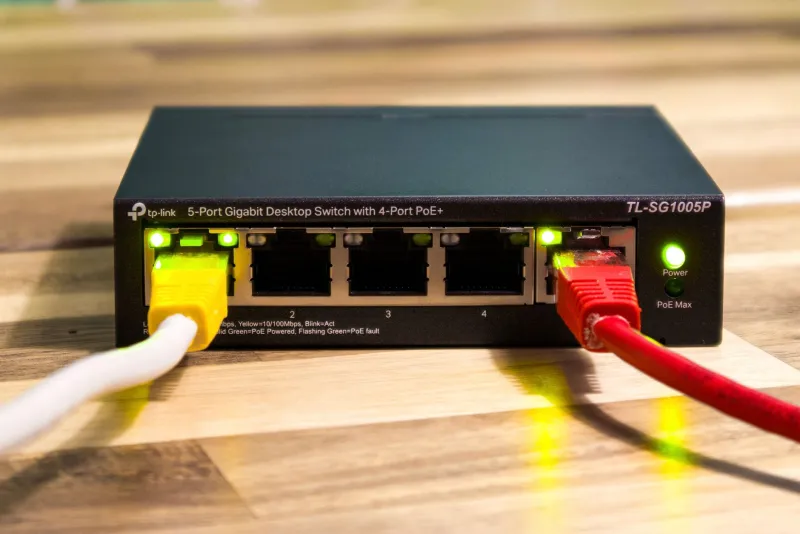
You probably updated your phone this month. Your laptop nags you weekly. But ask yourself the harder question: when did your router last receive a firmware update? For a large share of US households, the honest answer is never — not since the day the ISP technician or a big-box store clerk handed it over. That small plastic box handles banking sessions, work video calls, baby monitors, doorbell cameras, and your kids' gaming console. It is the one device that touches all your traffic, and it is frequently the one device nobody maintains.
Why Routers Rot Quietly
Unlike a phone, a router gives you no notification badge, no pop-up, no red dot. Firmware updates on consumer networking gear are largely silent, and when they do exist, they often require you to log into an admin page most owners have never opened. The result is a device that runs the same code from the day it was unboxed.
That staleness matters in two directions. First, security: router vulnerabilities are discovered regularly, and several of the largest botnet attacks in recent history — including the Mirai outbreak that knocked major US services offline in 2016 — spread primarily through unpatched consumer routers and cameras. Second, performance: firmware releases frequently include driver fixes for Wi-Fi stability, handshake improvements, and memory-leak patches. A router that reboots itself every few days or drops 5 GHz connections under load is often not broken. It is simply running four-year-old code.
The Auto-Update Catch
Modern routers increasingly ship with automatic update toggles, and that's genuine progress. But three problems persist.
- The toggle is off by default on many models, and setup wizards rarely push users toward it.
- Vendors stop shipping updates long before the hardware dies. A router might receive security patches for three years and nothing for the next five.
- ISPs control their own gear. If you rent a gateway from Comcast, Spectrum, or AT&T, patching is entirely their schedule — and older rental units can linger on shelves for years.
Automatic updates are worth enabling, but they are a backstop, not a strategy.
Finding Out What You're Running
Log into your router's admin page — typically 192.168.1.1 or 192.168.0.1 in a browser — and locate the firmware version, usually under an Administration or System tab. Then check the manufacturer's support site by model number. Compare dates. If the gap is measured in years, proceed to the next section. While you're in there, confirm the admin password isn't still "admin" — a shocking number of US households never changed it.
Updating Safely: A Step-by-Step Approach
- Back up your settings. Nearly every router offers an export or backup configuration file. Save it to your computer before touching anything.
- Download from the manufacturer only. Never trust a third-party site offering a firmware file. Match the exact model and hardware revision — a V2 router often cannot run V3 firmware, and flashing the wrong file can brick the device.
- Use a wired connection. Update over Ethernet, not Wi-Fi. A dropped wireless connection mid-flash is the classic way to turn a router into a paperweight.
- Flash and wait. The process takes five to ten minutes. Do not power-cycle the router during the update, even if the lights look frozen.
- Factory reset if you came from very old firmware. Jumping multiple major versions can leave stale settings behind. A reset, followed by manual reconfiguration, is the clean path.
Considering Open-Source Firmware
If your router's manufacturer has abandoned it, third-party firmware such as OpenWrt or DD-WRT can extend its life substantially. These projects actively patch supported hardware, often for years beyond vendor support, and add features like per-device bandwidth controls. The trade-off: installation is less forgiving, hardware compatibility must be verified against the project's device database, and you take on responsibility for configuration. For a comfortable tinkerer with an otherwise-dead router, it's a free revival. For everyone else, a new router with a stated support window may be the saner purchase.
The Post-Update Checklist
After flashing, don't just reconnect and forget. Work through this list:
- Set a new admin password and a strong Wi-Fi password using WPA2 or WPA3.
- Rename your networks (SSIDs) and re-pair your devices.
- Disable remote administration from the internet unless you specifically need it.
- Disable WPS, the push-button pairing feature that has known security weaknesses.
- Enable automatic updates if the option exists.
- Confirm your QoS, port forwarding, or parental-control rules survived — or re-create them.
Make It a Calendar Item
Treat the router like a smoke detector: check it twice a year. A recurring calendar reminder — "log into router, check firmware version" — takes five minutes and closes the biggest maintenance gap in the average American home network. The device guarding your entire digital life deserves at least the attention you give your phone.