Silent RAM Drain: How to Track Down the Memory Leak That Appears When Nothing Is Running
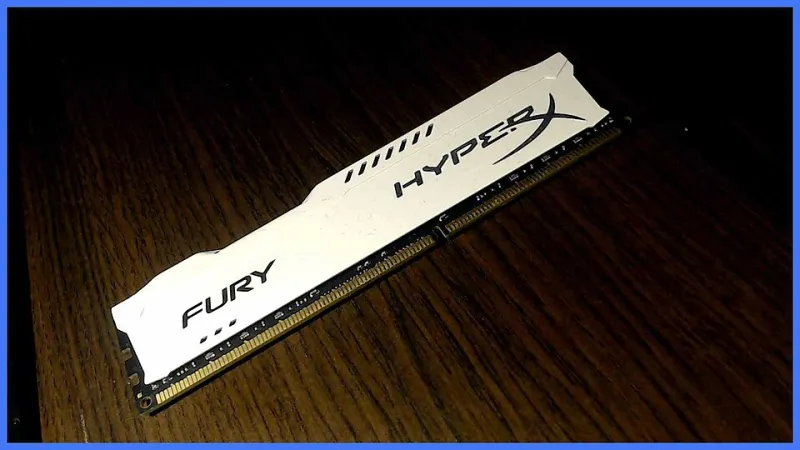
Photo: Zsinytwiki, CC0, via Wikimedia Commons
You close your browser. You shut down your email client. You exit every program visible in the taskbar. And yet, a glance at Task Manager reveals that your system is still sitting at 70 or 80 percent RAM utilization. Something is consuming your memory — and it is not showing its face.
This is the nature of a true memory leak: gradual, invisible, and frustratingly difficult to pin down without the right approach. At RooterX2, we see this class of problem frequently, and the root cause is almost never what users initially assume. The blame rarely belongs to the last application you were running. More often, it lives deeper in the stack — inside drivers, background services, or Windows components that most users never think to examine.
Here is how to find it, understand it, and stop it from degrading your system's performance over time.
Understanding What a Memory Leak Actually Means
A memory leak occurs when a program allocates memory and then fails to release it after it is no longer needed. Under normal circumstances, when a process terminates, the operating system reclaims all memory that process was using. But when a driver or a persistent background service holds onto allocated memory without properly freeing it, that memory remains consumed — even if the triggering application is long gone.
Over hours or days of uptime, a slow leak can quietly consume several gigabytes. The system does not crash immediately. Instead, performance degrades gradually: applications take longer to open, switching between tasks feels sluggish, and the machine seems to slow down for no apparent reason. Many users solve this by rebooting frequently, which temporarily reclaims the leaked memory — but never addresses the underlying cause.
Why Task Manager Often Misleads You
The default view in Windows Task Manager is a reasonable starting point, but it was designed for casual monitoring, not forensic diagnosis. It shows per-process memory consumption at a single point in time, which means a leak that accumulates slowly over hours may not look alarming in a snapshot.
More critically, Task Manager does not surface kernel-mode memory consumption in a way that is immediately actionable. Drivers operate in kernel space, and their memory usage is not always attributed to a visible process. You may see that your total committed memory is high while every listed process looks reasonable — and that gap is exactly where driver leaks tend to hide.
Step One: Establish a Baseline With Resource Monitor
Before reaching for advanced tools, open Resource Monitor (search for it in the Start menu or launch it from the Performance tab in Task Manager). Navigate to the Memory tab and sort processes by Working Set — the amount of physical RAM currently assigned to each process.
Note the values, then wait 30 to 60 minutes without opening any new applications. Refresh the view and compare. If any process has grown significantly without user interaction, that is your first lead. Pay particular attention to processes ending in svchost.exe, since Windows uses this host process to run dozens of individual services — and any one of them could be the source of a leak.
To identify which service is hosted inside a specific svchost instance, right-click it in Resource Monitor and select Go to Service(s). The Services tab will highlight the relevant entries.
Step Two: Use RAMMap to Examine Kernel and Driver Memory
RAMMap, a free utility from Microsoft Sysinternals, provides a breakdown of physical memory usage that goes far beyond what Task Manager offers. Download it directly from the Microsoft Sysinternals website and run it without installation.
Focus on the Use Counts tab. Look at the Driver Locked and Nonpaged Pool entries. Nonpaged pool is a region of kernel memory that drivers and system components use for data that must remain in RAM at all times. Under normal conditions, this value should remain relatively stable. If it is unusually large — generally anything above 1 to 2 GB on a system with 16 GB of RAM warrants investigation — a driver is likely failing to release memory properly.
Repeat the RAMMap snapshot after an hour of light use. If Nonpaged Pool has grown noticeably, you have strong evidence of a kernel-mode memory leak.
Step Three: Identify the Leaking Driver With PoolMon
PoolMon is a command-line tool included in the Windows Driver Kit (WDK), which is available as a free download from Microsoft's developer documentation portal. It displays pool memory allocations tagged by the driver or component that made them, allowing you to identify exactly which component is accumulating memory.
After installing the WDK, open an elevated Command Prompt and run poolmon.exe. Sort by the Diff column (the net number of allocations) by pressing D. Tags with a large positive difference — meaning allocations significantly exceed deallocations — are your candidates.
The four-character tag next to the largest offender can be cross-referenced against driver tag databases available online, or against the file %SystemRoot%\System32\drivers\pooltag.txt, which maps many common tags to their associated drivers.
Step Four: Address the Identified Driver
Once you have identified the responsible driver, you have several remediation options:
Update the driver. Visit the hardware manufacturer's website and check for a newer driver version. Memory leaks in drivers are commonly patched in point releases, and updating is the safest first step. This applies especially to network adapters, graphics drivers, and storage controllers — all of which interact heavily with kernel memory.
Roll back the driver. If the leak began after a recent Windows Update or driver installation, rolling back to the previous version through Device Manager may resolve it immediately. Right-click the relevant device, select Properties, navigate to the Driver tab, and choose Roll Back Driver if the option is available.
Disable or replace the driver. If the driver belongs to a peripheral you rarely use — an older scanner, a legacy audio interface, or a piece of software that installs virtual network adapters — consider disabling the device entirely or uninstalling the associated software.
Step Five: Investigate Windows Services Individually
If no third-party driver is responsible, the leak may originate in a Windows service. Common offenders in recent Windows 10 and Windows 11 builds have included the Superfetch/SysMain service, certain Windows Search indexing states, and Desktop Window Manager under specific display configurations.
You can isolate services by temporarily disabling non-critical ones through the Services console (services.msc) and monitoring whether the leak rate slows. Disable one at a time, wait an hour, and check RAMMap again. This process is methodical but reliable.
Preventing the Cycle
Memory leaks are not always permanent conditions. Driver updates from manufacturers frequently include memory management corrections, so keeping your drivers current through a trusted utility — rather than relying solely on Windows Update, which often lags behind manufacturer releases — is one of the most effective preventive measures available.
Additionally, setting a personal practice of reviewing Nonpaged Pool values monthly with RAMMap takes less than two minutes and can catch a developing leak before it becomes a performance problem.
Rebooting your system every few days remains a reasonable short-term measure, but it should be treated as a symptom management strategy, not a solution. The goal is to identify what is consuming your memory, address it at the source, and run your system at full capacity without manufactured interruptions.
Your RAM is a finite and valuable resource. Finding out what is quietly consuming it — and stopping it — is exactly the kind of diagnostic work that separates a well-maintained system from one that just barely keeps up.